The lead comes in
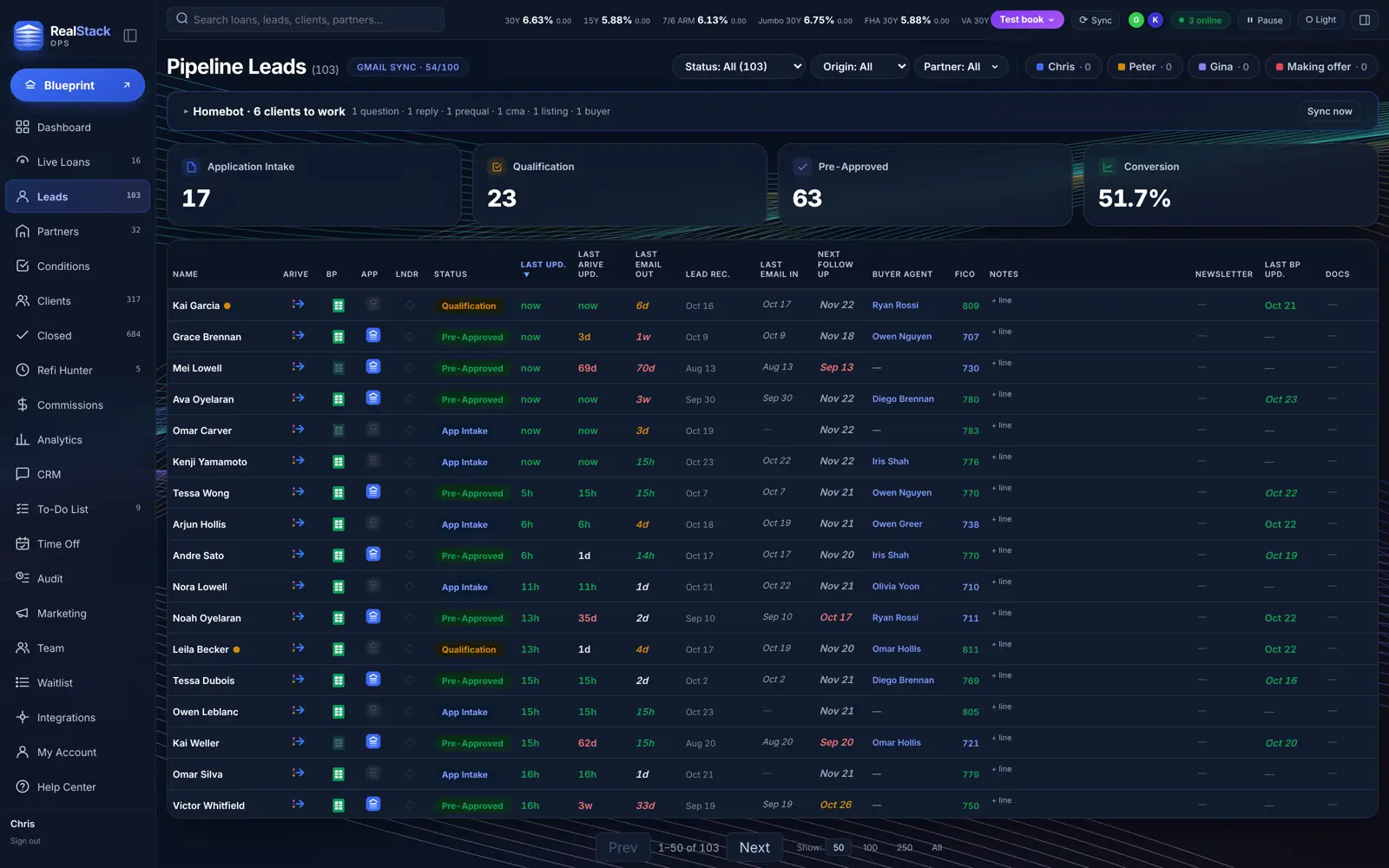
Leads arrive three ways. An Arive file in App Intake, Qualification or Pre-Approved shows up on Leads on its own, re-synced every few minutes. New lead adds someone by hand. And a homebuyer who taps Get Pre-Approved in Blueprint lands on your Leads with their numbers already attached.
Blueprint leads show as BP Lead until you open the Arive file with the same email, then the Arive row takes over and keeps the Blueprint link. Last email in and out come from your Gmail, so you can see who has gone quiet.
Build their Blueprint
Open the lead and click Open in Blueprint, or start in Blueprint with Import from Arive. Your name, phone and NMLS fill in from your profile.
Build two or three options (FHA against Conventional, a buy-down against none) so Compare has something to show. Any option can be hidden from the borrower or made view-only, and Preview as borrower shows exactly what they will see.
Send it
Send it from your own Gmail as "Your personalized mortgage Blueprint" with an Open my Blueprint button, or copy the link into a thread you already have going.
The link is private. Your borrower signs in with Google or a one-time code we email them, using the email you have on file. Anyone else who gets the link sees "This blueprint is private."
Control who sees it
Manage access on the lead sets what they can do (view only, adjust, or full edit), sets an expiry date, and makes a new link if one went to the wrong person. People with access lists every email the link opens for; add a spouse, parent or agent, or remove anyone.
Once you have checked their documents, lock Income, Debts, Assets or Credit Score. They see "Income verified by your loan officer" and the section stays put.
See what they're doing
Manage access shows when they first signed in and last opened it. Blueprint Activity on your Dashboard lists every open and every change, and Changes shows exactly what moved: price, rate, down payment.
On a call together? You both see a Live bar in Blueprint, with an outline on the field the other person is touching. Follow lets you ride along.

Follow up on autopilot
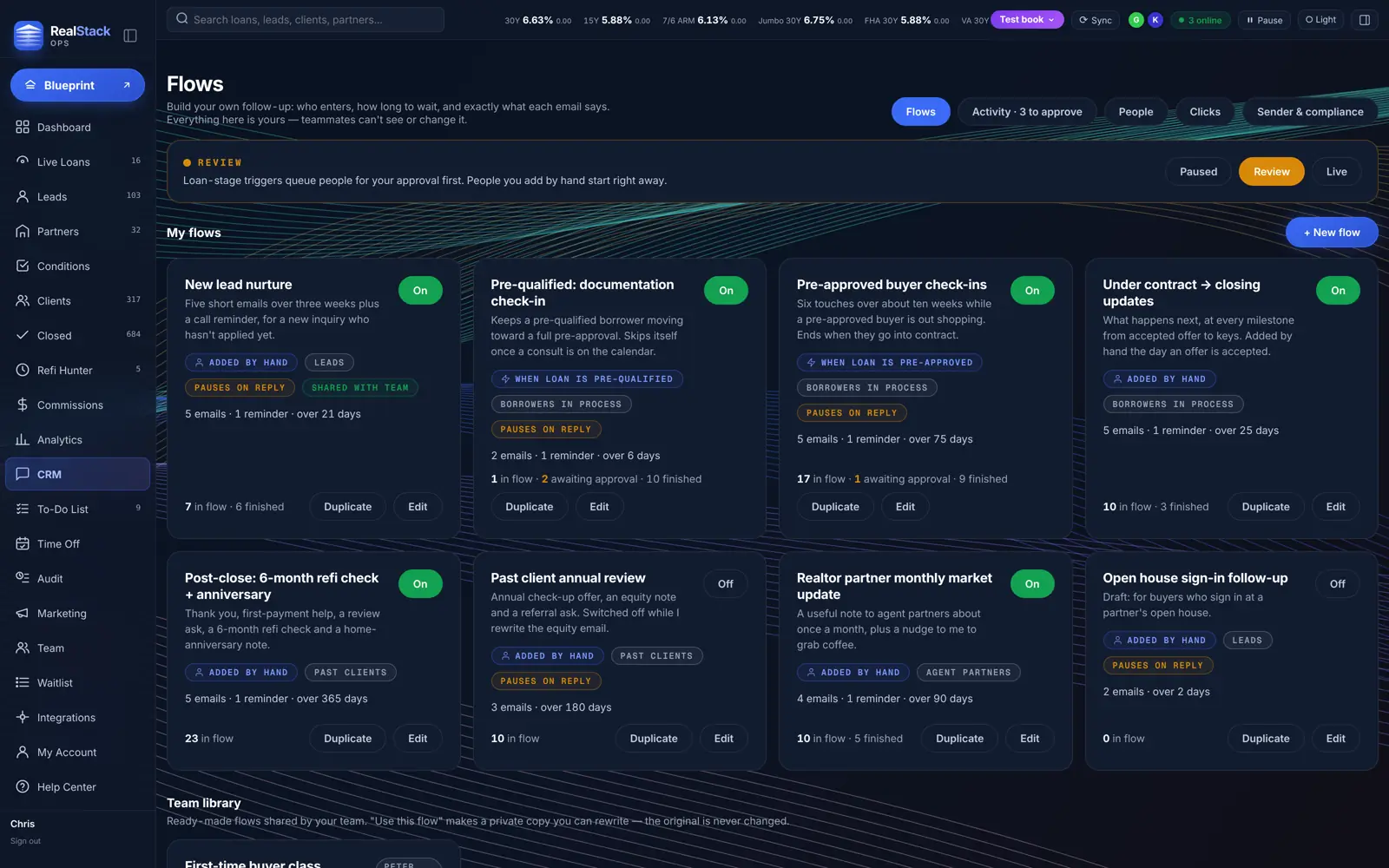
Email flows enroll Arive files automatically when they change stage: Application Sent, Application Received, Pre-Qualified, Pre-Approved. Set them to Review and every email waits for your OK; the Dashboard shows what is going out in the next 48 hours.
Blueprint leads can be added to any flow in two clicks.
Application to clear to close
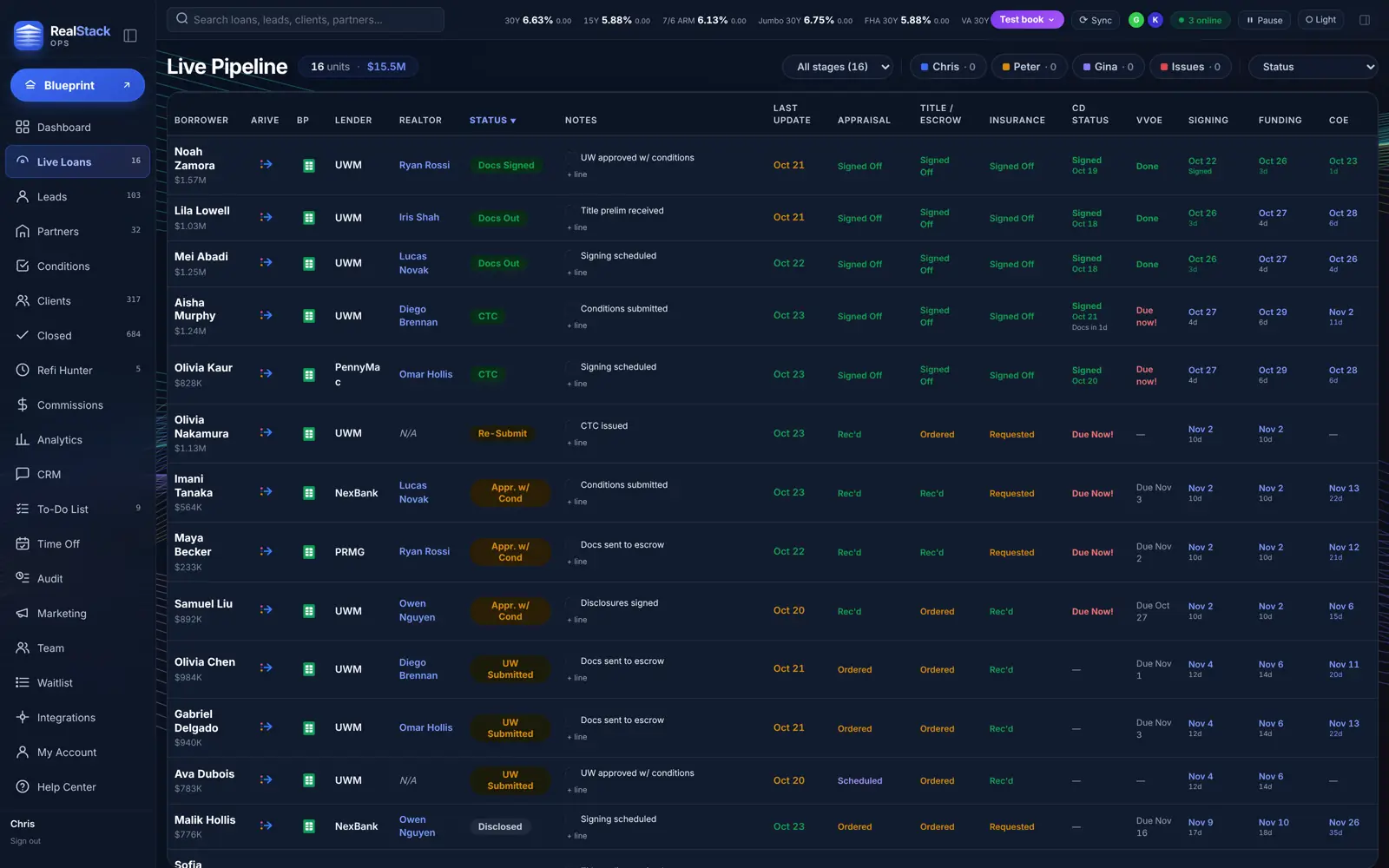
The file moves from Leads into Live Loans: Setup, Disclosed, UW, CTC, Closing, synced from Arive. Appraisal, title, insurance, lock and CD trackers show what is stuck without opening Arive.
Send Timeline Email updates the borrower, both agents and escrow in one click, from your Gmail.
After closing
The Closed checklist keeps post-close follow-through from slipping: the funding email, calls to clients and agents, the six-month check-in, comp and the review request.
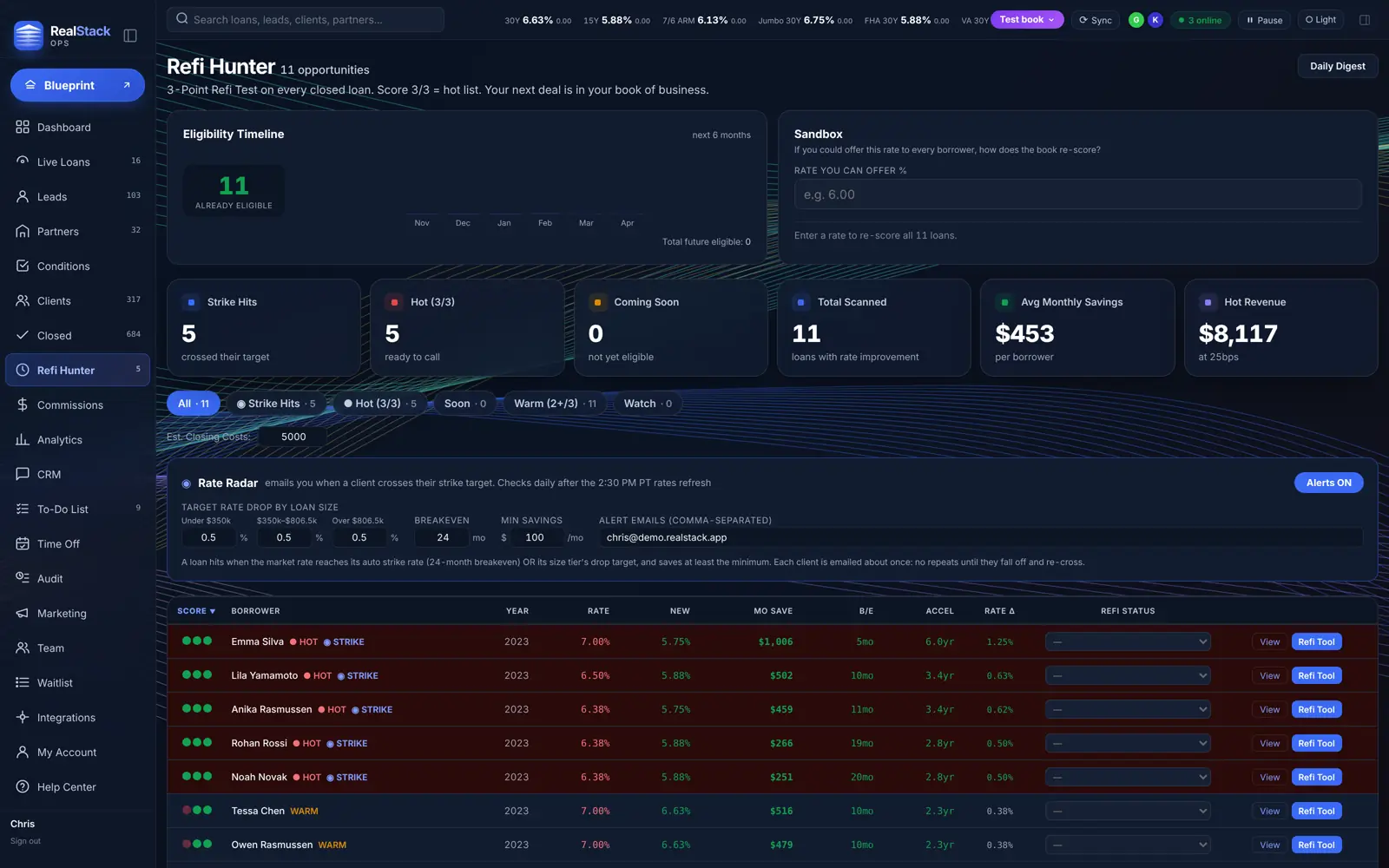
Refi Hunter watches every past client's rate and flags them, with the monthly savings, when the market crosses their strike price.
Getting started
About 15 minutes, once: sign in with Google, check your profile, paste three keys from Arive, connect Gmail, send your first Blueprint. A checklist in the app ticks each step off as you go.
A Test book with a full, made-up pipeline lets you try everything (and record demos) without touching a real client.